The short answer
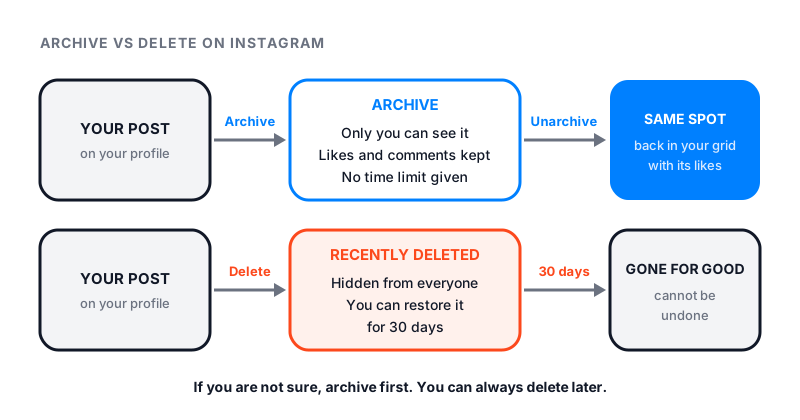
Here is what archive means on Instagram. You hide a post, Reel or story from your profile without deleting it. Your followers and everyone else stop seeing it. Only you can open it. The post keeps all its likes and comments.
You can undo it at any time. Tap Show on profile and the post goes back to its original spot in your grid.
Stories work a little differently. Instagram saves your stories to your Stories archive once they end, unless you turn that off.
What happens when you archive a post on Instagram
Instagram’s page on how to archive a post you’ve shared sums it up in two lines. The post is hidden from your profile, and your followers and other people can’t see it. It keeps all its likes and comments.
A few things follow from that.
- Nobody is told. Instagram’s help pages describe no alert for archiving. The post just stops showing.
- Your followers stay. Archiving a post does not remove anyone or change your follower count.
- Saves disappear for now. If someone saved your post, it drops out of their Saved list while it is archived. Our guide on how to find saved Reels on Instagram explains why saved posts vanish.
- It is not a delete. Nothing is lost, and there is no clock running.
People archive posts for many reasons. Some clean up an old grid before a new look. Some hide a sale that ended. Some just want a post out of sight for a while.
How to archive Instagram posts
You need the Instagram app for this. Instagram says archiving a single post is not available on computers.
Archive one post
- Tap Profile or your profile picture in the bottom right.
- Tap the post you want to archive.
- Tap Options in the top right.
- Tap Archive.
Archive a Reel
- Open your Reel.
- Tap Options in the bottom right.
- Tap Manage.
- Tap Archive.
Archive many posts at once
- Go to your profile and tap Menu in the top right.
- Below How you use Instagram, tap Your activity.
- Below Content you shared, tap Posts.
- Tap Select, then pick the posts you want to hide.
- Tap Archive, then tap Archive again to confirm.
Before you pick, you can tap Newest to oldest to change the order, or All dates to show a date range. On a computer, the same tool is under Your Activity, then Photos and videos, then Posts.
Where to find archived posts
- Go to your profile and tap Menu in the top right.
- Below How you use Instagram, tap Archive.
- Tap Stories archive at the top, then tap Posts archive.
There is a second way in. Tap Menu, then Your activity. Below Removed and archived content, tap Archived. From the menu at the top you can switch between the stories, posts and Live archive.
How to unarchive a post on Instagram
- Open your Posts archive with the steps above.
- Tap the post you want back.
- Tap Options in the top right, then tap Show on profile.
The post returns to its original spot on your profile. It does not jump to the top of your grid as if it were new. Its likes and comments come back with it.
How the story archive works
Instagram saves each story to your Stories archive after the 24 hours are up. You can also archive a story early. Open your story, tap Options, then tap Archive.
Only you can see your archived stories unless you choose to share them. From the archive you can add an old story to a highlight or share it again.
To turn the story archive off:
- Go to your profile and tap Menu in the top right.
- Below How you use Instagram, tap Your activity.
- Tap Archived.
- Tap Options in the top right, then tap Settings.
- Turn off Save story to archive.
A few details matter here. To save space, Instagram may mute music or freeze a video or GIF in an archived story, and those changes are permanent. If you delete a story from your archive, it also leaves any highlight it was in. Instagram also notes one more thing. Archived stories you shared publicly will be used to improve AI at Meta, unless you delete them or make your account private.
The story archive and highlights are not available on every account.
Archive vs delete on Instagram
| Archive | Delete | |
|---|---|---|
| Who can see it | Only you | No one |
| Likes and comments | Kept with the post | Gone with the post |
| Where it goes | Your archive | Recently deleted |
| How long it stays | No time limit given | 30 days, then gone for good |
| How to get it back | Show on profile | Restore within 30 days |
Stories you delete that are not in your story archive stay in Recently deleted for up to 24 hours only.
To reach Recently deleted, tap Menu, then Your activity. It sits below Removed and archived content. Instagram’s page on recovering deleted posts has the full steps.
If you are not sure, archive. You can always delete later. A delete that passes 30 days cannot be undone.
Who can see your archive
Only you. That is true for posts, Reels and stories.
It also works the other way. You cannot see anyone else’s archive. Sites and apps that claim to show someone’s archived posts cannot, because Instagram hides those posts from everyone but the owner. Many of these tools ask for your password, and some are spyware. Skip them.
Practical tips before you archive
- Archive in batches. Use Your activity and select many posts at once. It is faster than one by one.
- Keep a note. If you archive for a season, jot down which posts you hid, so you can bring them back later.
- Use hidden likes instead. If you only want to hide a like count, you do not need to archive. Our guide on how to hide likes on Instagram shows how.
- Remember the app is not the account. Deleting the app does not touch your archive. See what happens if you delete the Instagram app.
Archiving never costs you followers. If you want to see that for yourself, check your number before and after with our free Instagram follower count checker.