The short answer
To repost on TikTok, open the video and tap the Share button. Then tap Repost. That is all it takes. TikTok does not ask you to confirm, so the video is reposted the moment you tap.
To delete a repost, open the same video, tap Share, then tap Delete repost. Any replies people left on your repost are deleted with it.
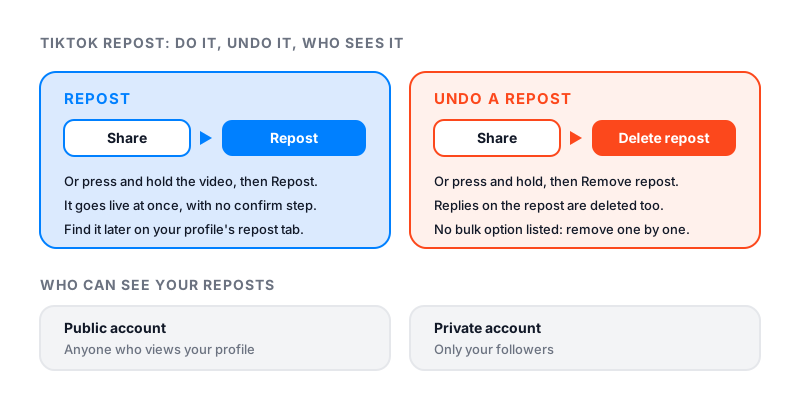
How to repost on TikTok
The repost button sits inside the Share panel, so start with the Share button on the side of the video. TikTok’s Repost help page lists three ways in total. Use whichever is easiest.
- From the Share panel. Open the video, tap the Share button, then tap Repost.
- With a long press. Press and hold on the video, then tap Repost.
- From a friend’s repost. If a friend already reposted it, tap their profile photo at the bottom of the video, then tap Repost.
That last one is handy when the Share panel is crowded and you cannot spot the option. Once you tap, the repost is live.
Where your reposts show up
A repost does not make a copy. It shares the original video with your name on it. TikTok says reposts show up in two places.
- Your profile. Every video you repost sits under the repost tab on your profile.
- Other people’s For You feeds. Your friends and community may see it in their feed. It looks like any other post, but it is labeled as a repost with your profile photo and nickname.
Who can see your reposts
It depends on one setting: whether your account is public or private.
| Your account | Who can see your reposts |
|---|---|
| Public | Anyone who views your profile. They can also see any text on your reposts and the replies to them, and they can reply. |
| Private | Only your followers, on your profile and in their For You feed. |
One detail surprises people. On a public account, your comment privacy settings do not apply to repost replies. So even if you limit who can comment on your videos, others can still reply to your reposts.
How to hide reposts on TikTok
If you want to make reposts private, know this first. TikTok’s help page does not list a separate switch that hides reposts. The documented way to limit who sees them is a private account. Then only your followers can see them.
To make your account private:
- Go to your profile and tap the Menu button at the top.
- Tap Settings and privacy.
- Tap Privacy.
- Turn on Private account.
Keep the trade-off in mind. A private account also hides your own videos from people who do not follow you. If you only want a few reposts gone, deleting them is the smaller step.
How to delete a repost on TikTok
To undo a repost, open the video you reposted. The fastest way to find it is the repost tab on your profile. Then use any of these three ways.
- Tap the Share button, then tap Delete repost.
- Press and hold on the video, then tap Remove repost.
- Tap your profile photo at the bottom of the video, then tap Remove.
Deleting a repost also deletes every reply on it. If you want to keep the repost but lose one reply, open the video, tap your profile photo at the bottom, press and hold the reply, and tap Delete.
How to remove all reposts on TikTok
TikTok’s help page only shows how to remove reposts one at a time. It does not describe a way to clear them all at once. So open your repost tab and remove them one by one.
Skip any outside app that offers to clear your reposts for you. It would need your TikTok login, and TikTok’s Terms of Service tell you not to share your password with anyone.
How to reply to a repost
When a friend reposts a video, you can reply to their repost.
- Open the reposted video.
- Tap your friend’s profile photo at the bottom.
- Tap Reply, write your reply, then tap the Send button.
TikTok’s help page also mentions repost text, which others can see on a public account. It does not list the steps for adding text, so treat anything you write on a repost as public.
Can you see who reposted your TikTok?
Not as a full list. TikTok’s help pages do not describe one. Its inbox filters cover likes and favorites, comments, Add Yours, and mentions and tags. Reposts are not on that list.
What you can see is smaller. When friends repost a video, their profile photos appear at the bottom of it. And reposts that reach the For You feed carry the reposter’s photo and nickname. If you want to track how a video spreads, watch its shares and views instead.
Why can’t I repost on TikTok?
TikTok does not publish a list of reasons the option goes missing. Work through these steps in order.
- Try the other two ways. Press and hold the video, or tap a friend’s profile photo if they reposted it.
- Switch between Wi-Fi and mobile data.
- Clear the app’s video cache. Our guide on how to clear TikTok cache shows where it is.
- Restart the app and your phone.
- Update TikTok to the latest version.
Steps 2 to 5 come from TikTok’s own advice for sharing problems. If the button is still gone, send feedback from the Help Center in the app.
Repost vs Stitch vs Duet vs re-uploading
These four get mixed up, but they are very different.
| Option | What it does | Where it lives |
|---|---|---|
| Repost | Shares the creator’s original video, labeled with your name | Your repost tab, and it can show in others’ For You feeds |
| Stitch | Uses a part of their video inside a new video you record | Your profile, as your own new post |
| Duet | Plays your video side by side with theirs | Your profile, as your own new post |
| Download and re-upload | Posts a copy of their video as a new post | Your profile, as if it were yours |
Stitch and Duet only work when the creator allows them, and the creator needs a public account. Downloading only works on videos where the creator turned on download permissions.
Re-uploading is the one to avoid. TikTok’s Community Guidelines say you should only post content you created or have the right to share. On the Integrity and Authenticity page, TikTok says reused clips with no creative edits, such as clips with someone else’s watermark, are not eligible for the For You feed. A repost keeps the credit with the creator. A re-upload takes it away.
Make your reposts work for you
Reposts are a quick way to show your followers what you like without making a new video. They are one way videos travel between friends, and our guide on what “Shared with you” means on TikTok covers another. Reposts do not add views to your own posts, though. If you want your own videos to be the ones people repost, make something worth passing on. Our guide on how to go viral on TikTok covers what makes people share. For a new video that needs a first push, Famoid sells TikTok likes delivered through third-party ads; they will not fix a video people skip. You can watch your follower count move with our free TikTok counter.