The short answer
To repost on Instagram, open a public post or Reel and tap Repost. The repost goes to the Reposts tab on your profile, and your followers may see it in their feeds. Tap Repost again to undo it.
The older way still works too. Tap Share, then Add to story, and the post appears in your story. Use a repost when you want it on your profile. Use your story when you want it gone in a day.
How to repost a post or Reel on Instagram
Instagram added its own Repost button on August 6, 2025. It works on public posts and Reels. Here are the steps from Instagram’s help page on how to repost a reel or a post.
- Open the Instagram app.
- Find a public post or Reel you want to share.
- Tap Repost.
That is all. The post now sits in the Reposts section of your profile. Only the original post can be reposted. You cannot repost a repost.
Add a note to your repost
You can add a short thought so your followers know why you shared it.
- Tap the bubble by your profile picture, at the bottom left of the post or Reel.
- Type your note.
- Tap Save.
Where is the repost button on Instagram?
The Repost button sits on the post or Reel itself. You will only see it on public posts and Reels whose creators allow reposts.
There is no setting to turn the button on for yourself. The Reposts on posts and reels switch in your settings controls something else: whether other people can repost your content.
Instagram’s help page lists reposting in the Android, iPhone and iPad apps. It does not list a way to repost on the Instagram website, so use the app.
Where your reposts show up and who can see them
Reposts are public in a few places. It helps to know them before you tap.
- Your profile. Reposts get their own tab on your profile.
- Your followers’ feeds. Instagram says your repost may be recommended to your friends’ and followers’ feeds.
- The Friends tab in Reels. Friends can see reels you reposted there.
- Comments come to your inbox. When someone comments on your repost, it arrives as a direct message to you.
Credit stays with the creator. Instagram says reposts are credited to the original poster. Their post may then be recommended to your followers, even people who do not follow them. Instagram’s help page does not say whether the creator gets a notification when you repost.
How to see your reposts
- Tap your profile picture in the bottom right.
- Tap the reposts tab on your profile.
Your reposts are also part of your data. You can download them with the rest of your information.
How to undo or delete a repost
To remove one repost, tap Repost again on the post or Reel you reposted.
To remove many at once:
- Tap your profile picture in the bottom right.
- Tap Menu in the top right.
- Tap Your activity, then Reposts.
- Select the posts you want to remove, then tap Delete.
How to repost on Instagram story
Sharing to your story is the older way to repost. It is still useful for quick shares.
Share a post or Reel to your story
- Tap Share below the photo or video.
- Tap Add to story.
- Tap Next in the bottom right.
- Tap Share.
This only works if the account is public and allows resharing. Instagram also says sharing posts to stories is not available to everyone. Anyone who views your story can see who posted the original and tap through to their account.
Share someone’s story to your story
- Tap Share in the bottom right of their story.
- Tap Add to story.
- Tap Next, then Share.
The account must be public. Public accounts allow this by default. All teen accounts have story-to-story sharing turned off by default.
Repost a story you are tagged in
When someone mentions you in their story, Instagram sends you a notification. You also get a direct message with a preview of their story. You can re-share it to your own story, unless they turned that off. Open that message to find the share option. The preview disappears from your messages after 24 hours, so share it soon.
If you want your story to send people somewhere, add a link sticker. Our guide on how to add a link to your Instagram story shows how.
Why can’t I repost on Instagram?
If the Repost button is missing, one of these is usually the reason.
- The account is private. You can only repost public posts and Reels.
- The creator turned reposts off. Instagram lets anyone turn off reposts of their own posts and Reels.
- It is already a repost. Go to the original post and repost that one instead.
- The feature has not reached you. Instagram says reposting may not be available to everyone.
- Your app is old. Update Instagram from the App Store or Google Play and try again.
For stories, the rules are a little different. The account must be public and allow resharing. Teen accounts block story-to-story sharing unless they change the setting.
Repost vs share to story vs collab vs remix
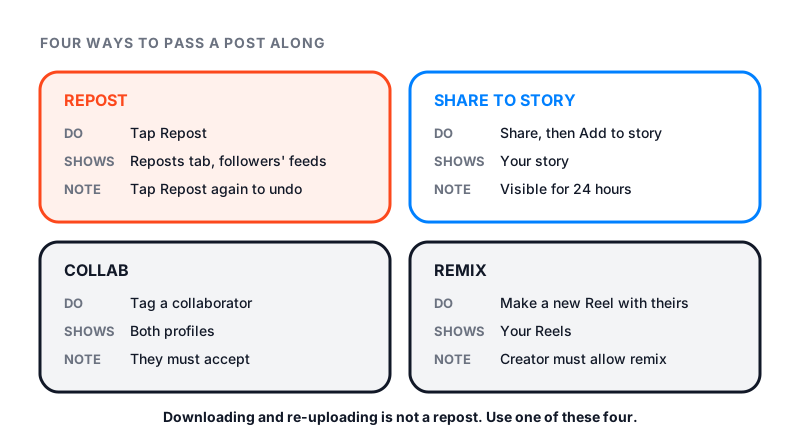
These four features all pass a post along, but they do very different jobs.
| Feature | What it does | Where it shows | Whose post it is |
|---|---|---|---|
| Repost | Shares a public post or Reel as it is | Your Reposts tab and followers’ feeds | The original poster |
| Share to story | Puts the post in your story | Your story | The original poster, shown in your story |
| Collab | Two accounts share one post | Both profiles and both sets of followers | Both accounts, named in the header |
| Remix | Makes a new Reel using all or part of a video | Your own Reels | Yours, a new Reel |
A collab only shows on the other profile after that account accepts your invite. Our guide on how to do a collab post on Instagram walks through it.
Download and re-upload is not a repost
Some people save someone else’s video and post it as their own. Instagram treats that as unoriginal content. Its page About original content on Instagram is clear on three points.
- Adding a watermark, a border or a credit in the caption does not make a copy original.
- Screen-recording someone else’s video and posting it counts as unoriginal.
- Instagram says original content gets the best reach. For content you did not make, it recommends reposting or sharing to your story instead.
Instagram may also add an Original by label to a copy, linking back to the real creator. And you are responsible for getting permission before you use someone else’s work. When in doubt, use the Repost button.
How to repost your own post
Instagram’s repost help page covers other people’s public posts. It does not describe reposting your own. To bring an old post back in front of people, share it to your story. Tap Share below it, then Add to story, then Share.
Tips for creators
- Decide on reposts. To stop others reposting your work, tap Menu. Below How others can interact with you, tap Sharing and reuse. Then turn off Reposts on posts and reels.
- Leave it on if you want reach. Instagram says a repost can show your post to the reposter’s followers, even if they do not follow you.
- Add notes to your own reposts. A short reason makes the share feel personal, not random.
When others repost your work, new people may find your profile. To see if your count moves after a busy week of reposts, check it with our free Instagram follower count checker.